
|
With the mobile app, locating and editing a unit record is as easy as scanning a vehicle barcode. Employee roles with the proper permissions can then update a vehicle’s location, fuel level, mileage, status, and more.
Manage Unit Records
 Add a unit (manually)
The availability of this feature is based on the following management setting in Admin Setup: Allow Add Vehicle Manually.
- On the app Home screen, tap FLEET.
- Scan or manually search for a unit to make sure it doesn't already exist in the system at your location.
- If the unit is not found, the app presents you the option of creating a new unit. Tap to continue adding a new unit.
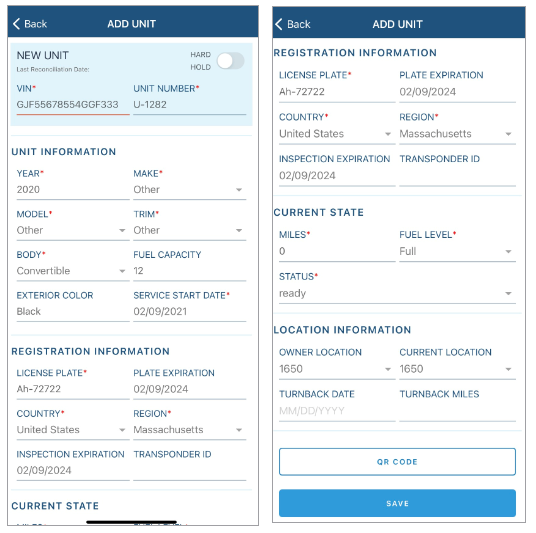
- On the Add Unit screen, fill in required fields (*), including a VIN and Unit Number. If applicable, the VIN is matched with a model in your system. At a minimum, the app fills in the unit’s Year, Make, Model, Trim and Fuel Capacity based on its VIN.
- (Optional.) Generate and print the QR code and barcode associated with the unit's VIN. Tap . A PRINT button is available.1
- Tap to add the unit record and return to the Home screen.
Edit a unit record
Your employee role must have the Edit Fleet permission to edit unit records and the Fleet Status permission to change a unit's status.
Note: Updating a unit record does not update the information on any associated agreements.
Hover to view the full-sized image.
- On the app Home screen, tap FLEET.
- Scan or manually search for a unit.
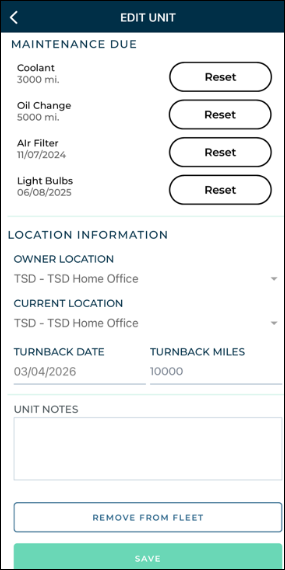
- On the Edit Unit screen, make your changes.
- Tap .
Questions about fields on this screen? Review the Fleet glossary.
Remove a unit from the fleet
Your employee role must have the Edit Fleet permission to edit unit records and the Remove From Fleet permission to remove a unit from the fleet.
Note: You cannot remove a unit that is In Use or Pending Import Details.
- On the app Home screen, tap FLEET.
- Scan or manually search for a unit.
- On the Edit Unit screen, tap .
Return a unit to the fleet after its been removed
Your employee role must have the Edit Fleet permission to edit unit records and return a removed unit to the fleet.
- On the app Home screen, tap FLEET.
- Scan or manually search for a unit.
- On the Edit Unit screen, tap to return the unit to the active fleet.
Walkaround Inspections
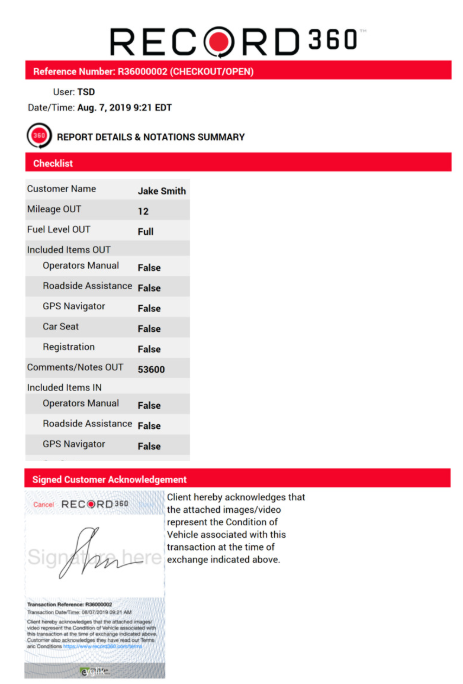
(iOS) Perform an inspection with Record360 and View History
Record360 integration is sold separately, and is supported on the web and mobile app (iOS only). Location setup must be completed by TSD Support. Contact your TSD Sales Representative at sales@tsdweb.com for more information.
 Inspect a unit (log damage or current condition)
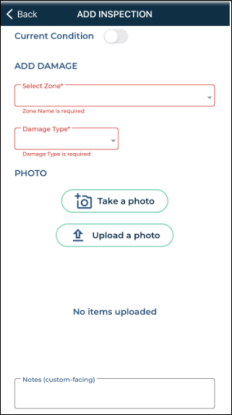
If you need to log unit damage during your inspection or simply upload photos or notes to log its current condition, you can do so.
- On the Edit Unit or View Unit screen, tap Inspect. (If viewing existing inspection entries, an Add Inspection button is also present to begin a new inspection.)
- Do one of the following, depending on the type of inspection:
- If logging damage:
- Select or confirm the area of damage (Zone) and select a Damage Type.
- Take or upload up to 12 photos of the damage and/or add any notes, if necessary.
- Tap Save.
- If logging current condition:
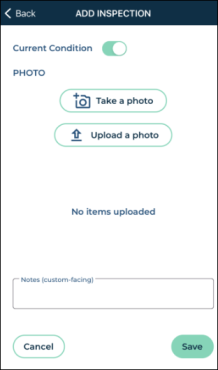
- Tap the Current Condition
 toggle.
 - Take or upload a photo of the unit and/or add any notes, if necessary.
- Tap Save.
View inspection details
In all areas of the app where you can perform a unit inspection, tap the View button to review all inspections broken down by Agreement Number / Date Logged, along with uploaded photo thumbnails (tap these to zoom in).
Telematics
Telematics integration is sold separately. Contact your TSD Sales Representative at sales@tsdweb.com for more information.
Telematics add a new dimension to your fleet management, providing real-time GPS fleet tracking. See "TSD Telematics" for more information.
GPS Tracking: View Connected Cars on a Map
If your location uses the GPS component of TSD Telematics, you can track all units and their current locations.
Note: You can view the location of a Connected Car on the Fleet Reconcile screen by tapping the locate icon ( ) in the list of units.
- On the app Home screen, tap FLEET from the main menu.
- Tap .
- Enter the VIN, tag number, Unit Number, or License Plate of the unit and tap .
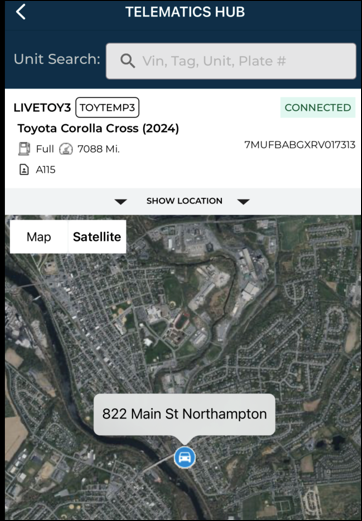
- The app shows the unit's location (represented with a vehicle icon) on your device's Maps app, along with its address, as well as unit and agreement information.
Hover to view the full-sized image.
Reconciling Fleet
Reconcile units on the lot
Your employee role must have the Edit Fleet permission to edit unit records and the Fleet Status permission to change a unit's status.
Use the mobile app Reconcile Fleet feature to generate a physical inventory from your location's lot.
If you're in the middle of reconciling your fleet, you can tap Back to save your progress and return to the menu (say, if you need to service a customer). You can resume your reconciliation process later, as long as you do so within an hour.
- On the app Home screen, tap FLEET > .
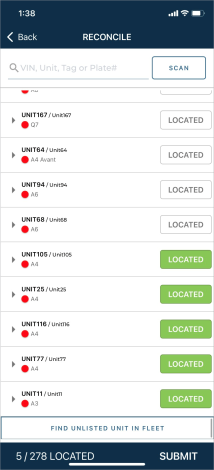
- The Fleet Reconcile list contains units in your current location's fleet that are not in use or removed from the fleet (or removed from pending import, for those with automated fleet import). In the list of units, the following options are available:
- Search for or scan a unit. Manually searching for a unit by VIN, Unit Tag, or Plate Number. Or, scan a unit's barcode or QR code to mark the unit as located in your inventory (LOCATED). If a unit is not on the Fleet Reconcile list but is present in your current location's active fleet (e.g., a unit that has a status of In Use), you can mark it as an excess unit by tapping ADD TO EXCESS).
- View and edit unit information. Expand a reconcile entry (
 ) to view or edit (
 ) its current fuel, mileage, and status. Tap Save to save changes and return to the list of reconcile units.
 - Mark a unit as located in the lot. Tap LOCATED.
- Mark a unit as missing from the lot. Tap MISSING.
- Mark a unit as an excess unit that is present in your active fleet but not on the Fleet Reconcile list. Tap ADD TO EXCESS.
- Locate the unit on a map (Connected Car Integration). If the unit's Owning Location has Connected Car Integration with GPS location allowed, locate icon (
 ) may be available for you to view the unit’s current physical location on a map. See "GPS Tracking: View Connected Cars on a Map" in this topic for more information.
 - Tap Submit when you're finished.
- the Fleet Reconciliation date, employee who performed the reconcilation, and location at which the reconciliation was performed.
- the following information for each reconciled unit:
- VIN
- License Plate Number
- Unit Number
- Make
- Model
- Color
- Vehicle Status (e.g., Ready)
- Status (e.g., Located or Not Located)
Note: If you abandoned a previous fleet reconciliation less than an hour ago, a message is displayed: "Would you like to resume the previous Reconciliation process?" You can either resume the previous fleet reconciliation process (with located units marked) or start a new one (with located units cleared).
A summary of the Fleet Reconciliation is sent to the employee's email address. The report is a Microsoft Excel .csv file (Fleet_Reconciliation_report.csv) and contains:
You can view the last date and time a unit was accounted for during the Fleet Reconcile process at the top of the Edit Unit screen, when editing the unit record.
Glossary of terms
Refer to the Glossary in the Fleet Hub topic for field definitions.
© 2026 TSD Rental, LLC